
Track Goals using server-side tracking
Goals in Matomo can be tracked from your server when a backend system confirms that a conversion has occurred.
For example, an online lead may later become a sale in your CRM if the conversion occurs by phone, or through another channel. The sale is an offline conversion because it does not occur as a trackable action in the browser.
This guide is intended for developers implementing server-side Goal tracking when a conversion is confirmed by your backend. It provides examples using the Matomo PHP Tracking client and Tracking HTTP API.
How a server-side Goal conversion reaches Matomo
- A server-side conversion starts with an online interaction that Matomo tracks using the JavaScript tracker. For example, a visitor arrives through a marketing campaign and submits a lead form.
- During the online interaction, you can retrieve information from the Matomo JavaScript tracker and store it with the corresponding backend record:
- Visitor ID: Use
getVisitorId()to associate the server-side request with the existing Matomo visitor. - Attribution information: Use
getAttributionInfo()to retrieve the attribution information Matomo uses for Goal conversions, including referrer information and/or the campaign name and keyword.
- Visitor ID: Use
- Later, when the conversion occurs outside the browser where Matomo originally identified the visitor, the backend system (such as a CRM) retrieves the stored information and sends the Goal conversion to Matomo.
- The server-side request uses the Tracking HTTP API or a server-side SDK, such as the Matomo PHP Tracking client. The request includes the Goal ID and can include revenue where applicable.
Visitor identification and attribution
The visitor ID associates the conversion with the same Matomo visitor, but not necessarily the same visit. If the conversion is sent after the configured Visit timeout, which is 30 minutes by default, Matomo may record it as part of a new visit for that visitor. The stored attribution information helps preserve the appropriate acquisition attribution for the Goal conversion.
Before you start
- Create a Goal in Matomo and configure it to be manually triggered.
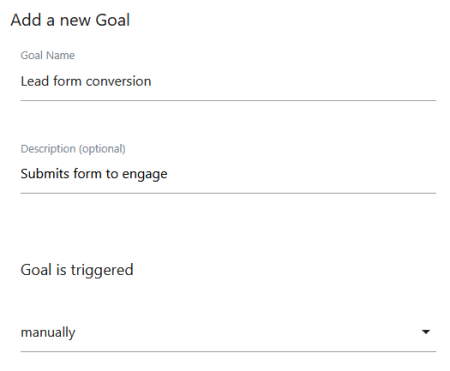
- Install the Matomo JavaScript tracker on the website where the visitor’s initial interaction occurs.
- Ensure your backend or CRM can run code when the conversion occurs and send HTTPS requests to your Matomo instance.
- You will need to store the Matomo visitor ID and attribution information retrieved from the JavaScript tracker with the corresponding customer record on your server.
- Choose whether to send the conversion using the Tracking HTTP API directly or a server-side SDK, such as the Matomo PHP Tracking client.
- Configure a token_auth if you use Tracking HTTP API parameters that require authentication.
Capture and store the Matomo visitor information
When the visitor completes the initial interaction on your website, store the Matomo visitor ID and attribution information with the corresponding customer record.
For example, if a visitor submits a lead form, include hidden fields for these values:
<input type="hidden" name="matomo_visitor_id" id="matomo_visitor_id">
<input type="hidden" name="matomo_attribution" id="matomo_attribution">
Add the following JavaScript after the lead form and before the closing </body> tag:
<script>
_paq.push([function () {
    var visitorId = this.getVisitorId();
    var attributionInfo = this.getAttributionInfo();

    document.getElementById('matomo_visitor_id').value = visitorId;
    document.getElementById('matomo_attribution').value =
        JSON.stringify(attributionInfo);
}]);
</script>
- The
getVisitorId()method returns the visitor’s 16-character visitor ID. Store this value to associate the later server-side request with the same visitor. - The
getAttributionInfo()method returns the attribution information Matomo uses for Goal conversions. This can include the campaign name and keyword, referrer timestamp, and referrer URL. Note: This method does not return every campaign parameter such asutm_sourceandutm_mediumas separate values.
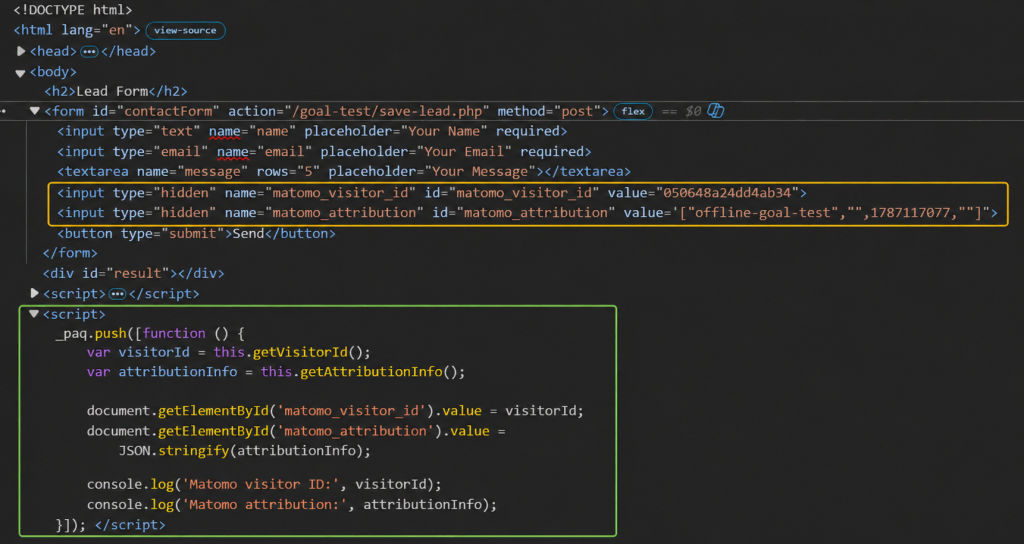
When the form is submitted, store both values with the corresponding record in your backend or CRM. For example, in this simple PHP endpoint like save-lead.php, you could handle and store the data like this:
<?php
// save-lead.php

// Example: receive POST data from your form.
$leadId = $_POST['lead_id'] ?? null;
$matomoVisitorId = $_POST['matomo_visitor_id'] ?? null;
$matomoAttribution = $_POST['matomo_attribution'] ?? null;

// Convert attribution information if sent as a JSON string.
if (is_string($matomoAttribution)) {
    $matomoAttribution = json_decode($matomoAttribution, true);
}

// Example: store in database (pseudo-code).
// Initialise matomo_goal_tracked as false because the Goal
// conversion has not yet been sent to Matomo.
$stmt = $pdo->prepare("
    UPDATE leads
    SET matomo_visitor_id = ?,
        matomo_attribution = ?,
        matomo_goal_tracked = false
    WHERE lead_id = ?
");

$stmt->execute([
    $matomoVisitorId,
    json_encode($matomoAttribution),
    $leadId
]);

echo json_encode(['status' => 'success']);
?>
An example of what a stored record might look like:
Lead ID:               CRM-12345
Matomo visitor ID:     4a47d6e4106ae2a3
Matomo attribution:    ["lead-form","",1787106618,""]
Matomo Goal tracked:   No
The exact storage method depends on your application. For example, you could add fields to the customer record in your database.
Send the Goal conversion from your server
When your backend confirms the conversion, retrieve the Matomo information stored with the corresponding customer record. You can then send the Goal conversion using the Matomo PHP Tracking client or the Tracking HTTP API directly.
Use the Matomo PHP Tracking client
If your application uses PHP, the Matomo PHP Tracking client provides methods for restoring the visitor ID and attribution information before sending the Goal.
In the example below:
setVisitorId()associates the tracking request with the stored Matomo visitor.setAttributionInfo()restores the stored attribution information for the Goal conversion.doTrackGoal()records the specified Goal conversion. If the Goal has revenue, pass the revenue as the second argument (100).
<?php

require_once __DIR__ . '/vendor/autoload.php';

use MatomoTracker;

$matomoUrl = 'https://your-matomo-domain.example/';
$siteId = 1;
$goalId = 3;

// Retrieve the lead or customer record from your database.
$lead = [
    'matomo_visitor_id' => '4a47d6e4106ae2a3',
    'matomo_attribution' => '["lead-form","",1787106618,""]',
    'matomo_goal_tracked' => false,
];

// Do not send the Goal again if it has already been tracked.
if ($lead['matomo_goal_tracked']) {
    exit('Goal conversion already sent to Matomo.');
}

$tracker = new MatomoTracker($siteId, $matomoUrl);

$tracker->setVisitorId($lead['matomo_visitor_id']);
$tracker->setAttributionInfo($lead['matomo_attribution']);

// Send the Goal conversion.
$success = $tracker->doTrackGoal($goalId, 100);

// Update your database only after the tracking request succeeds.
if ($success) {
    $stmt = $pdo->prepare("
        UPDATE leads
        SET matomo_goal_tracked = true
        WHERE lead_id = ?
    ");

    $stmt->execute([$leadId]);
}
Note: getAttributionInfo() returns an attribution array in JavaScript. Before passing this value to the PHP Tracking client, provide it to setAttributionInfo() as a JSON-encoded string. If your backend already stores the submitted JSON string, pass it directly. If it stores the value as a decoded PHP array, encode it with json_encode() first.
Use the Tracking HTTP API
You can construct the Tracking HTTP API request directly.
https://your-matomo-domain.example/matomo.php
?idsite=1
&rec=1
&idgoal=3
&_id=4a47d6e4106ae2a3
&_rcn=lead-form
&send_image=0
The important parameters are:
idsiteidentifies the website in Matomo.rec=1enables tracking for the request.idgoalidentifies the Goal that converted._idsupplies the stored 16-character Matomo visitor ID._rcnspecifies the campaign name used for Goal attribution.send_image=0requests anHTTP 204response instead of a tracking image.
Where applicable, include the stored campaign attribution: &_rcn=lead-form. Optionally, provide _rck when a campaign keyword is available. The _rcn and _rck parameters apply specifically to Goal conversion attribution.
In a production implementation, the backend would normally send this request automatically. For example, a CRM status change, payment confirmation, webhook, or internal process could trigger the server-side code.
Prevent duplicate Goal conversions
A backend process may run more than once for the same lead or conversion. Without a safeguard, each successful tracking request could record another Goal conversion in Matomo.
To prevent this, store whether the Goal conversion has already been sent, for example:
- Add a boolean field such as
matomoGoalTrackedto the lead or customer record. - Set it to
falseinitially. - Then change it to
trueafter Matomo successfully records the Goal conversion.
The field name is used as an example below. Use a name that follows your application’s existing naming conventions, for example:
Matomo Goal tracked: No
Before sending the conversion, check this value. After Matomo accepts the tracking request, update it:
Matomo Goal tracked: Yes
Only update the record after the tracking request succeeds. This provides an audit trail and lets your application retry a failed request without intentionally sending the same conversion twice.
Test the goal conversion in Matomo
After your backend sends the Goal conversion, verify that Matomo recorded it for the expected visitor and acquisition source.
- In Matomo, go to Visitors > Visits Log.
- Locate the visitor whose conversion you triggered. Use the visit details to confirm it is the same visitor associated with the original online interaction.
- Expand the visit and confirm the manually triggered Goal appears in the visitor’s activity.
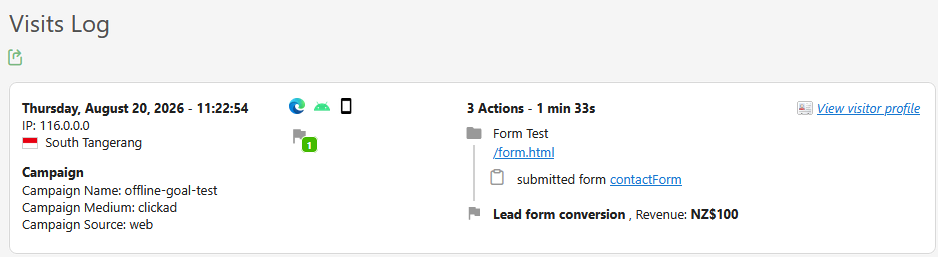
- Confirm the conversion is associated with the expected campaign or referrer.
- Go to Goals > Overview and confirm the conversion appears in the Goal report.
- Go to Acquisition > Campaigns and check the Goal conversion is attributed to the expected acquisition source.
Server-side Goal tracking connects conversions confirmed by your backend with the visitor activity already tracked in Matomo. By storing the visitor ID and attribution information with the corresponding customer record and later, send the Goal conversion while preserving the the visitor and acquisition source.