
How do I resolve configuration errors in Search Engine Keywords Performance?
Setting up Search Engine Keywords Performance requires access to the relevant search engine accounts and website properties in Google Search Console, Bing Webmaster Tools, or Yandex Webmaster.
If you encounter errors relating to website verification, access permissions or existing configurations, follow this guide for common configuration errors and how to resolve them.
Unverified websites
Google requires the Search Console property to be verified and accessible to the connected Google account before Matomo can import its search keyword data.
If you see an unverified website in Matomo after connecting your Google account, ownership verification may be incomplete or no longer valid.
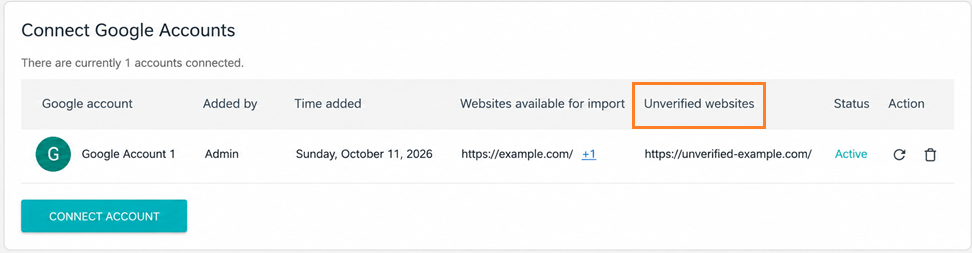
- To verify the website ownership, sign in to Google Search Console using the Google account connected to Matomo.
- Select the affected website from the property dropdown.
- If the website is not verified, Google will prompt you to follow instructions to verify website ownership.
- Go to Settings > Ownership verification to check its verification status.
- Once verification is complete, return to Matomo and the website should appear under Websites available for import.
No website access
The No Website Access status may indicate that the Google account connected to Matomo cannot access the required Google Search Console property.
- To check access, sign in to Google Search Console using the Google account connected to Matomo.
- Select the affected website in the property dropdown.

- If the website is not verified, Google will prompt you to follow instructions to verify website ownership.
- Once verification is complete, return to Matomo and the Status should change from No website access to Active.
- If the website is verified, but the Status in Matomo remains as No Website Access, open the property > Settings > Users and permissions to review the account’s access.
- If the property is missing from the dropdown in Google Search Console, you will need to set it up and verify the website.
- Once access has been confirmed, return to Matomo and try configuring the website again.
Website missing from the configuration list
When adding a configuration and the website does not appear in the available list, the property has not been verified in Google Search Console or the Google account does not have permission to the property.
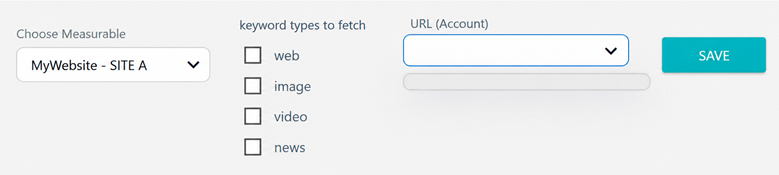
- To resolve this, follow the guide on How to set up Google Search Console and verify your website.
- Once the website is verified and the connected Google account has access, return to Matomo and select the website from the configuration list.
- Make sure you are selecting the correct Domain or URL Prefix property for the website you want to configure.
Invalid URL or cannot change a website URL in Matomo
An existing Search Engine Keywords Performance configuration may cause an Invalid URL error or prevent you from updating a website’s URL or other settings in Administration  > Websites > Manage.
For example, this may happen when a property previously selected in a Google Search Console or Bing Webmaster Tools configuration has been removed or is no longer accessible.
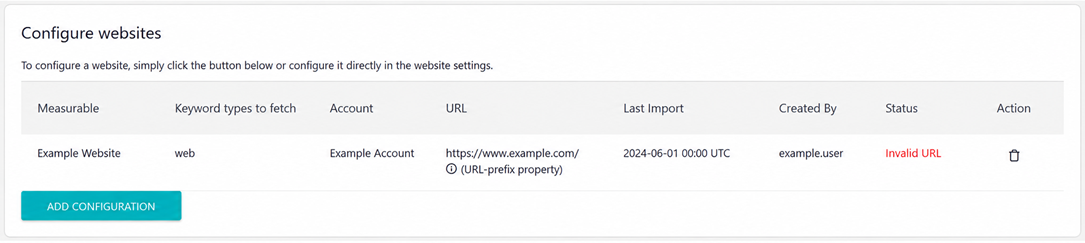
- If you receive an URL error when trying to change a website’s tracking URL or other settings, open the Search Performance settings in Matomo.
- You can remove the existing configuration, or update and verify the existing configuration.
Note: Removing a website from a search performance configuration may interrupt keyword data imports. Review the configuration before making changes and reconnect the website after updating its URL (if required).