How to track Ad Click IDs in Matomo (Google, Facebook, Bing & more)
When you run paid campaigns, accurate attribution depends on capturing the identifiers your ad platforms generate. Ad platforms such as Google Ads append the click identifier (gclid=abc123) as an URL parameter when visitors open your ad’s landing page, for example, /site.com/?gclid=abc123.
The click ID is unique to that specific user interaction and allows the advertising platform to attribute conversions to the exact ad, campaign, and keyword that initiated the visit.
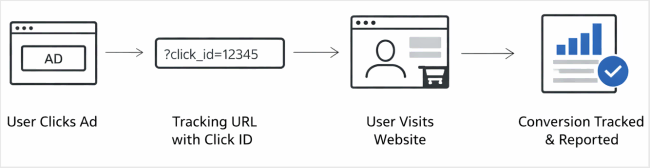
This guide explains how to track and report advertising click IDs in Matomo from ad platforms such as Google Ads (gclid), Facebook (fbclid), Microsoft Bing (msclkid), Yandex (yclid), and LinkedIn (li_fat_id). You can use the Advertising Conversion Export premium feature, or manually capture the URL parameters.
Before you start
- To track click IDs in Matomo, you must have a valid legal basis for processing. Check if consent is required in your jurisdiction and ensure that storing click IDs aligns with your privacy policy.
- If using the Advertising Conversion Export, Matomo automatically detects supported click ID parameters in the URL and enables dimensions for reporting.
- If you are not using the premium feature, you will need to capture the click IDs manually using Custom Dimensions. Go to Option 2 below for the manual setup.
- Choose the approach that aligns with your attribution requirements, reporting needs, and level of implementation control.
Option 1: Use the Advertising Conversion Export premium feature
The Advertising Conversion Export feature is available by default in Matomo Cloud. For Matomo On-Premise, you can install it from the Marketplace.
- Enable auto-tagging in your advertising platform and Matomo will automatically detect click IDs from the supported platform.
- Ensure your landing page URLs and redirects are not stripping URL parameters.
- Confirm that click ID parameters (such as
gclid) appear in the landing page URL. - Test by clicking your own ad and open the Visitors > Visits in real-time report to check your visit appears in Matomo attributed to the ad platform.

- Once traffic starts flowing to your site from the ad, go to the segment selector in the Matomo dashboard.
- Filter reports using the
Ad ProviderandAd Click IDdimensions and build custom reports.
Anonymised click IDs
Since the update to AdvertisingConversionExport v4.0.12, click IDs are anonymised by default. Although click IDs do not directly identify an individual, they are unique identifiers and may be associated with advertising platform profiles.
- When a visitor provides consent, Matomo records the full click ID value.
- Without consent, Matomo stores an anonymised version.
This ensures privacy compliance while still supporting campaign attribution once consent is granted. Refer to the guides on integrating Matomo with consent manager platforms.
(Optional) Export conversions back to ad platforms
To send conversions back to your Google Ad, Microsoft Bing, or Yandex Ads platform, configure a new conversion export as described in this guide.
Option 2: Manually capture click IDs
By default, Matomo does not automatically store click ID parameters such as gclid, fbclid, or msclkid in dimensions for reporting. To analyse or export them, you will need to explicitly capture the click IDs using Custom Dimensions in the JavaScript tracking code OR Matomo Tag Manager.
- Enable auto-tagging in your advertising platform and check that your landing page URLs and redirects are not stripping URL parameters.
- Confirm that click ID parameters (such as
gclid) appear in the landing page URL.
Create a Visit-level Custom Dimension
- Go to Administration
 > Websites (or Measurables) > Custom Dimensions.
 - Under Visit Dimensions, click Configure a New Dimension.
- Create one Visit-level Custom Dimension for each ad platform you are tracking. For example: dimension 1 for Google Ads (
gclid), dimension 2 for Facebook (fbclid), dimension 3 for Microsoft Bing (msclkid). - Ensure each dimension is set to Active.
You can now configure tracking with Matomo Tag Manager or by updating the Matomo JavaScript tracking code directly.
Configure Matomo Tag Manager
If using the JavaScript tracking code, follow the instructions in the next section below. Matomo Tag Manager is recommended if you manage tracking centrally and want to configure URL parameter variables and Visit-level Custom Dimensions without editing site code.
Create variables for the click ID parameters
- In Tag Manager, go to Variables and click Create New Variable.
- Create one variable for each ad platform you are tracking.
- Select the URL Parameter variable type.
- Enter the parameter name exactly as used in the URL, for example
gclid,fbclid, ormsclkid. - Click Create New Variable to save.
Modify or add the Matomo tracking tag
- Go to Tags and click Create New Tag or open your existing Matomo tag to edit.
- The tag must be set to Pageview tracking.
- Scroll to the Custom Dimensions section and enter the dimension ID. Set the Value field, to the corresponding URL variable created earlier.

- Link the Pageview trigger to the tracking tag.
- Save the changes and test the setup.
Configure the JavaScript tracking code
To track click IDs by modifying the Matomo JavaScript tracking code directly, follow the implementation steps outlined below.
- You will need to add a function on your web page to extract the value of a query parameter from the page URL.
- Each parameter is retrieved and stored in a variable.
- The function and variables must be placed before the Matomo
trackPageViewcall:
<script>
function getUrlParam(param) {
  var results = new RegExp('[?&]' + param + '=([^&#]*)').exec(window.location.href);
  return results ? decodeURIComponent(results[1]) : null;
}
</script>

//Define variables

<script>
var gclid = getUrlParam('gclid');
var fbclid = getUrlParam('fbclid');
var msclkid = getUrlParam('msclkid');
</script>
Each variable will contain the click ID value or null if the parameter does not exist.
Set the Custom Dimension in the tracking code
- Set the visit dimension before
_paq.push(['trackPageView']);. This example only sets the dimension if the value exists. - Because these are Visit-level dimensions, Matomo stores the value for the entire visit. Any goal conversions triggered during the visit will include the stored click ID.
<script>
if (gclid) {
  _paq.push(['setCustomDimension', 1, gclid]);
}

if (fbclid) {
  _paq.push(['setCustomDimension', 2, fbclid]);
}

if (msclkid) {
  _paq.push(['setCustomDimension', 3, msclkid]);
}
</script>
Test the setup
- Test by clicking your own ad and open the Visitors > Visits Log report to check your visit appears.
- Confirm that the click ID is stored at visit level.

- Create a dedicated Custom Report or Segment where the
click ID is not emptyand include metrics such as Conversions, Revenue, and Goal Value. - Periodically review reports to ensure parameters are still captured correctly, especially after campaign or URL structure changes.
When to use an Action-level Custom Dimension
Action-level dimensions work well when you want to analyse which landing URLs contain click IDs, audit incoming traffic parameters, or inspect click ID distribution. Action dimensions are less suitable when you need persistent attribution and reliable goal conversion reporting.
- To create an action dimension instead of using the visit dimension, go to Administration > Websites (or Measurables) > Custom Dimensions.
- Under Action Dimensions, click Configure New Dimension.
- Set the dimension to Active.
- Choose Page URL Parameter from the Extract value drop-down and define the URL query string parameters that you want to capture.
- Click the plus + icon to include a new parameter:

- Enable case-sensitive matching if the parameter or value you are tracking relies on exact character casing.
- Click Create to save.
- View the dimension reports in Matomo > Behaviour reports.