
Set up tracking with the Matomo SDK for iOS
Tracking iOS app usage in Matomo requires integrating the Matomo SDK for iOS into your application. This involves adding the SDK to your Xcode project, configuring a tracker, implementing tracking, and verifying that data is received in Matomo. Once configured, the SDK sends tracking data from your app to your Matomo instance.
This guide references an example SwiftUI project called demo. It demonstrates how to integrate the Matomo iOS SDK and initialise a tracker that can be accessed throughout the app.
Before you start
- Set up a new website (measurable) in Matomo to track the mobile app.
- Take note of the site ID and Matomo instance URL as these details are required for the tracking setup in your iOS app.
MatomoTracker in iOS
When implementing tracking in your iOS app, you will typically interact with a shared MatomoTracker instance. In Xcode, typing MatomoTracker.shared. displays the available properties and methods provided by the SDK.

The tracker instance manages configuration and provides methods for tracking screen views, events, goals, User IDs, and other analytics data.
The MatomoTracker instance is used for both configuration and sending tracking requests throughout the application.
Configure the iOS project for Matomo tracking
To integrate Matomo, you will need to update your project’s dependencies, initialise the tracker in the app entry point, and add the tracking code to your Swift files.
The main areas relevant to this setup include:
- The project settings, where Swift Package Manager dependencies are configured.
- The app entry point (
App.swiftorAppDelegate.swift) where the tracker is initialised. - Your Swift source files where tracking is implemented.
Step 1: Add the Matomo iOS SDK as a project dependency
The recommended way to install the Matomo iOS SDK is through Swift Package Manager.
- Open your project in Xcode.
- Select File > Add Package Dependencies.
-
Enter the Matomo iOS SDK repository URL:
https://github.com/matomo-org/matomo-sdk-ios.git

-
Select the latest stable version and add the package to your app target.
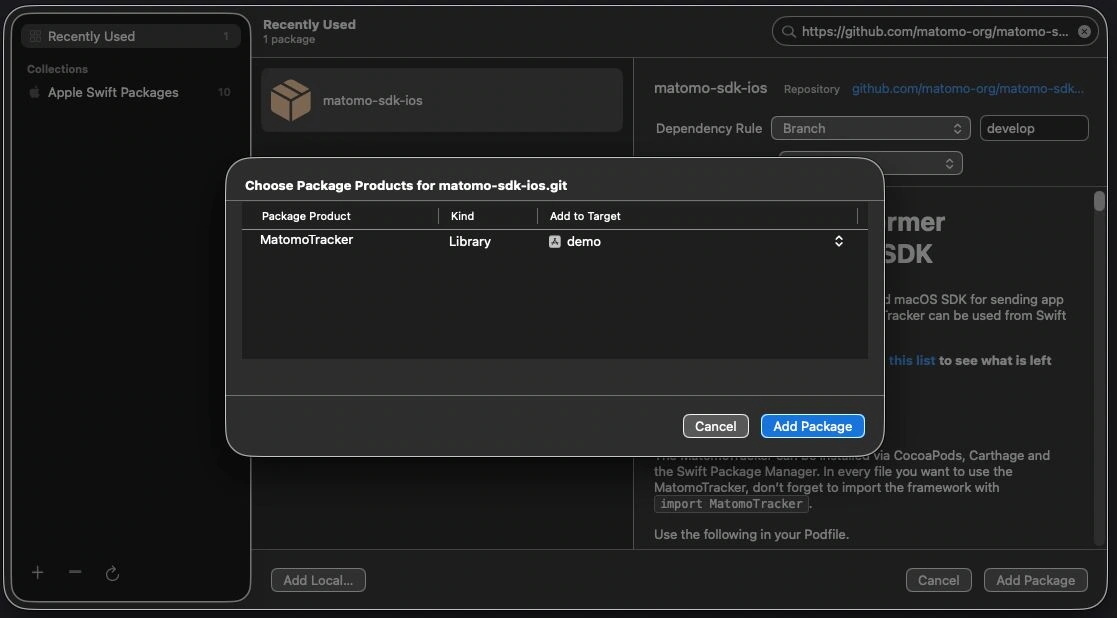
After the package is added, Xcode downloads the SDK and makes it available for use in your project.
Step 2: Import the Matomo SDK
-
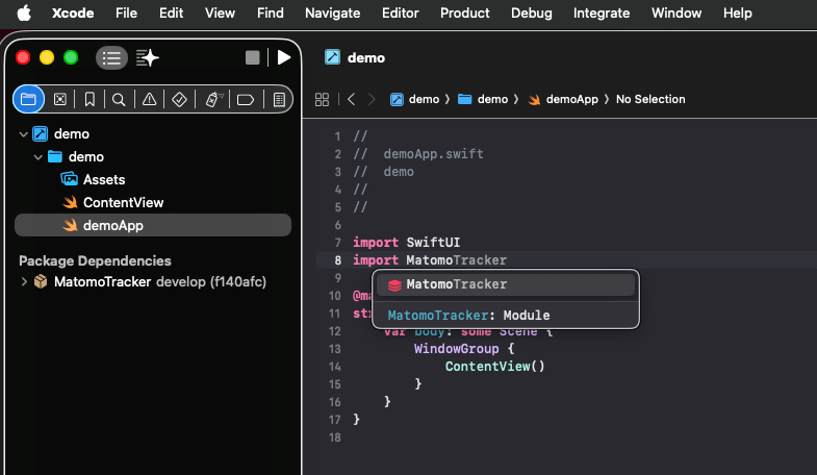
Open your app’s entry point file and add
import MatomoTrackerto import the Matomo SDK.
-
If Xcode recognises the
MatomoTrackermodule without showing import errors, the SDK has been installed successfully.
In the next step, you will need to create a shared tracker file that stores your application’s Matomo tracker configuration. This provides a single tracker instance that can be reused throughout the app, ensuring all tracking requests use the same configuration.
Step 3: Create a shared tracker instance
- Right-click on your app’s main folder and select New > File from Template > Swift File.
-
Click Next.

-
Name the new file, MatomoTracker+Shared.swift and add the tracking code.

-
Replace the
siteIdwith the ID of your website (measurable) in Matomo. - The
baseURLis the URL of your Matomo instance and must includematomo.php, for example:
import MatomoTracker

extension MatomoTracker {
    static let shared: MatomoTracker = MatomoTracker(
        siteId: "1",
        baseURL: URL(string: "https://mysite.matomo.cloud/matomo.php")!
    )
}
Test the tracker setup
Build and run the application to confirm the project compiles successfully with the Matomo SDK installed. If the application builds and launches without errors, the SDK has been installed correctly and the shared tracker instance has been configured successfully.
Troubleshooting
If the application does not build or run, check the following:
- The Matomo iOS SDK appears under Package Dependencies in your Xcode project.
- The file contains the import:
import MatomoTracker. If Xcode cannot resolve the import, the package may not have been added correctly to the project target. - The
siteIdcontains the correct Matomo Site ID and the baseURL points to your Matomo tracking endpoint, for example:
baseURL: URL(string: "https://your-domain.example/matomo.php")! - Build and run the application in Xcode and review any compiler errors or warnings shown in the Issues Navigator or Console output.
Next steps
Once the SDK is installed and the shared tracker is configured, you can start tracking screen views, events, goals, and custom dimensions with the Matomo SDK for iOS.
For the full SDK reference, including advanced configuration options, see the Matomo SDK for iOS page on GitHub.