
How do I get started tracking my heatmaps & session recordings?
To get the most accurate Heatmaps and Session Recordings data, make sure tracking is correctly configured across your website before creating and analysing recordings or heatmaps.
This guide outlines the key setup steps to ensure clicks, mouse movements, scroll activity, and session replays are captured consistently.
Enable heatmaps and session recordings
Heatmaps and session recordings require all of the following to work correctly:
- The Heatmap & Session Recording plugin is installed and activated in Matomo (On-Premise only).
- Features must not be disabled in Administration
 > System > General settings > Heatmap Session Recording.
 - The Matomo tracking code is loaded on the pages you want to track.

Create a heatmap or session recording
- From your Matomo dashboard, go to Heatmaps or Session Recording > Manage. Learn how to create a heatmap or create a session recording.
- You can also set up heatmap/session recording in Administration > Websites (or Measurables) > Heatmaps / or Session Recording.
- Ensure the key settings are configured. The selected rule type and configured target URL must match the correct domain, protocol, path, or query parameters.
- An active heatmap must have at least one valid target page.

- An active session recording must have at least one valid entry page.

- If any of these requirements are missing, Matomo will not capture heatmap or session recording interactions.
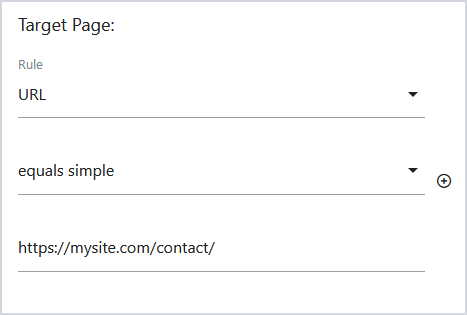
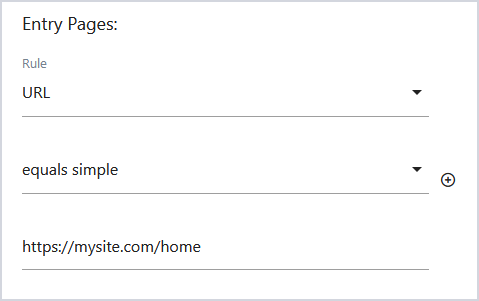
Once the heatmap or session recording is active, it will start capturing interactions when users visit the target or entry page.
By default, Heatmaps automatically capture the initial page snapshot on page load. However, you can capture the snapshot manually using the Capture Heatmap Snapshot Manually option available from Heatmaps version 5.1.0.
Review sampling limits
If you defined a percentage of visits to track, heatmaps and session recordings may not appear immediately. The configured sampling percentage must be high enough to capture visits. Websites with low traffic or low recording percentages may take longer to generate data. Read more on analysing heatmaps and replaying session recordings.
Verify the Matomo tracker initialises correctly
To ensure tracking is correctly configured, you can do the following checks:
- Use the browser console (in Developer tools) for JavaScript errors, and failed or blocked Matomo requests. JavaScript errors, failed network requests, or incorrectly loaded tracking scripts can prevent Heatmap and Session Recording tracking from starting.
- Verify that the Matomo tracker loads only once per page and custom tracking implementations do not interfere with the default Matomo tracker. Multiple Matomo containers, duplicate tracking codes, or conflicting analytics scripts can affect heatmap and session recording behaviour.
Tag managers and deferred script loading
Some performance plugins, consent managers, or tag managers delay or modify how the Matomo tracking code loads. This can prevent tracking from initialising correctly. Check the Matomo tracker loads before user interactions occur and deferred or lazy-loaded scripts do not block tracking initialisation.
JavaScript frameworks and single-page applications
Single-page applications (SPAs) and JavaScript frameworks often change content dynamically without reloading the page. In these cases, tracking may require additional configuration to detect page changes correctly. This commonly affects frameworks such as React, Angular, Vue, and Next.js. Read more in the Heatmap & Session Recording developer’s guide.
On websites using AJAX navigation or dynamically injected content, the Matomo tracking code may not execute correctly after page updates. Verify that the tracker remains active after page transitions and dynamically loaded content does not bypass tracking initialisation.
Browser, iframe and cross-domain limitations
Heatmaps and Session Recordings may not capture interactions correctly inside cross-domain iframes, embedded third-party content, or sandboxed iframe environments.
Some interactions may not be captured correctly due to browser limitations, touch behaviour, unsupported elements, or device-specific rendering differences. Ad blockers and security extensions could also block Matomo tracking scripts or prevent heatmap and session recording requests from loading.